
Grade 12 results are out. Where to check yours

Unit notes and practice questions

Grade 9 Information Technology unit 3: Application software

Everything here is for unit 3 of the Grade 9 Information Technology textbook: what the chapter covers, the short notes, practice questions with their answers, and the lesson video where one exists.

Get it on Google Play
5
Cards
10
Practice questions on unit 3
72–144
The textbook pages for unit 3

What unit 3 covers

  1. 1.Using Application Software
  2. 2.Word Processing
  3. 3.Manipulating Data in Spreadsheet
  4. 4.Creating Presentation
  5. 5.Unit Review Exercise

Short notes for unit 3

The cards filed under this chapter on the Grade 9 Information Technology page. Open one at a time.

OperatorOperationExample FormulaResult
+Addition=3+33+366
-Subtraction=3−33-300
*Multiplication=3∗33*399
/Division=3/33/311
^Exponentiation=333^32727
%Percent30%30\%0.30.3

When you use it

Use these operators to construct mathematical calculation formulas in Excel worksheets.

Watch out

All formulas must start with an equal sign (=), otherwise Excel treats the input as plain text.

Drafted from Grade 9 Information Technology, pages 72-144, then checked twice before it went up

Indent Marker or MethodAction
First-line indent markerAdjusts the first line indent of a paragraph
Hanging indent markerAdjusts all lines in a paragraph except the first line
Left indent markerMoves first-line and hanging indent markers together
Tab keyQuickest method to indent a single existing paragraph

When you use it

Use when adjusting the distance of paragraph text away from the left or right margin.

Watch out

Dragging the Left indent marker moves both the first-line and hanging indent markers at the same time.

Drafted from Grade 9 Information Technology, pages 72-144, then checked twice before it went up
View NameMain Function
Normal ViewCreate and edit slides, thumbnails, and speaker notes
Slide Sorter ViewReorder, hide, and set timing using slide thumbnails
Notes Page ViewCreate and print full-page notes for each slide
Reading / Slide Show ViewDisplay the presentation full-screen to the audience

When you use it

Use to switch between different working environments while designing, organizing, or presenting slides.

Watch out

Hiding a slide in Slide Sorter View keeps it in the file, but it will not appear during the presentation.

Drafted from Grade 9 Information Technology, pages 72-144, then checked twice before it went up

When you use it

Use relative references (like A1) when formulas should shift across rows or columns, and absolute references (like AA1) when a referenced cell must stay constant.

Watch out

Forgetting the dollar sign ($) or pressing F4 causes the referenced cell to shift incorrectly when dragging the fill handle.

Drafted from Grade 9 Information Technology, pages 72-144, then checked twice before it went up

AlignmentShortcutFunction
Left AlignmentCtrl + LAligns text evenly along the left margin
Center AlignmentCtrl + ECenters text between margins for titles
Right AlignmentCtrl + RAligns text evenly along the right margin
JustificationCtrl + JAligns text evenly to both left and right margins

When you use it

Use to format the horizontal orientation and edges of paragraphs or headings in Microsoft Word.

Watch out

Center alignment is meant for titles and headings, not for long paragraphs.

Drafted from Grade 9 Information Technology, pages 72-144, then checked twice before it went up

Practice questions on unit 3

10 multiple-choice questions written against this chapter, each with its answer and the reason. Try one before you open the answer.

Question 1

In Microsoft Excel, which symbol must be typed at the beginning of every formula?

  1. A.= (equal sign)
  2. B.+ (plus sign)
  3. C.# (hash mark)
  4. D.$ (dollar sign)
Show the answer and why

Answer: A = (equal sign)

Why

To allow Excel to distinguish formulas from data, all formulas must start with an equal sign (=).

Question 2

Which keyboard shortcut is used to insert a manual page break in Microsoft Word?

  1. A.Ctrl + Enter
  2. B.Ctrl + Shift
  3. C.Alt + Enter
  4. D.Shift + Enter
Show the answer and why

Answer: A Ctrl + Enter

Why

You can insert a manual page break in Microsoft Word by pressing Ctrl + Enter on your keyboard.

Question 3

In Microsoft PowerPoint, which shortcut key combination is used to insert a new slide?

  1. A.Ctrl + M
  2. B.Ctrl + N
  3. C.Ctrl + S
  4. D.Ctrl + P
Show the answer and why

Answer: A Ctrl + M

Why

In PowerPoint, you can insert a new slide page using the shortcut keys Ctrl + M.

Question 4

Which keyboard shortcut is used to center align selected text in Microsoft Word?

  1. A.Ctrl + E
  2. B.Ctrl + C
  3. C.Ctrl + J
  4. D.Ctrl + R
Show the answer and why

Answer: A Ctrl + E

Why

Ctrl + E aligns text to the center of the page. Ctrl + L is for left alignment, Ctrl + R for right, and Ctrl + J for justification.

Question 5

When you use the Indent commands on the Home tab in Microsoft Word, by how much is the indent adjusted per click?

  1. A.1/2 inch increment
  2. B.1/4 inch increment
  3. C.1 inch increment
  4. D.2 inch increment
Show the answer and why

Answer: A 1/2 inch increment

Why

The Indent commands (Increase Indent and Decrease Indent) adjust the indent by a 1/2 inch increment.

Question 6

While typing a multilevel list in Microsoft Word, how can a student decrease the indentation level of a line?

  1. A.Hold the Shift key and press the Tab key
  2. B.Press the Enter key twice
  3. C.Hold the Ctrl key and press the Spacebar
  4. D.Hold the Alt key and press the Tab key
Show the answer and why

Answer: A Hold the Shift key and press the Tab key

Why

To increase the indent level, you press Tab. To decrease the indentation level, you hold the Shift key and press the Tab key.

Question 7

Almaz is calculating the price of teff sacks in Excel. She needs to multiply each sack's price by a fixed sales tax rate in cell G1. How should cell G1 be written so it does not change when copied to other rows?

  1. A.GG1
  2. B.#G#1
  3. C.@G@1
  4. D.%G%1
Show the answer and why

Answer: A GG1

Why

An absolute cell reference uses the dollar sign ($) before the column letter and row number (such as GG1) to keep the reference constant when copied.

Question 8

According to the textbook, what are the default line spacing and paragraph spacing values in Microsoft Word?

  1. A.1.15 inches line spacing and 8 points paragraph spacing
  2. B.1.0 inch line spacing and 12 points paragraph spacing
  3. C.1.5 inches line spacing and 6 points paragraph spacing
  4. D.2.0 inches line spacing and 10 points paragraph spacing
Show the answer and why

Answer: A 1.15 inches line spacing and 8 points paragraph spacing

Why

In a Microsoft Word document, the default line spacing is 1.15 inches and the default spacing between paragraphs is 8 points.

Question 9

According to the presentation design guidelines in the textbook, what font sizes should be used for slide titles, sub-headings, and body text in PowerPoint?

  1. A.44 to 60 points for titles, 32 to 40 points for sub-headings, and 18 to 32 points for body text
  2. B.36 to 48 points for titles, 24 to 30 points for sub-headings, and 12 to 16 points for body text
  3. C.50 to 72 points for titles, 40 to 48 points for sub-headings, and 20 to 28 points for body text
  4. D.40 to 50 points for titles, 28 to 36 points for sub-headings, and 14 to 20 points for body text
Show the answer and why

Answer: A 44 to 60 points for titles, 32 to 40 points for sub-headings, and 18 to 32 points for body text

Why

The textbook specifies that titles should be between 44 and 60 points, sub-headings between 32 and 40 points, and body text between 18 and 32 points.

Question 10

Which PowerPoint view displays thumbnail images of all slides so you can easily reorder them by dragging and dropping or set slide show timing?

  1. A.Slide Sorter View
  2. B.Normal View
  3. C.Notes Page View
  4. D.Reading View
Show the answer and why

Answer: A Slide Sorter View

Why

Slide Sorter View shows thumbnails of your slides, letting you reorder them by dragging and dropping, set timings, or hide slides.

The app holds 12 questions on this unit, marked as you go. These are the first 10.

The textbook pages for unit 3

Unit 3 runs from page 72 to page 144 of the Ministry of Education edition.

Ministry of Education edition, English, 251 pages

Download the PDF

Practise this unit in the app

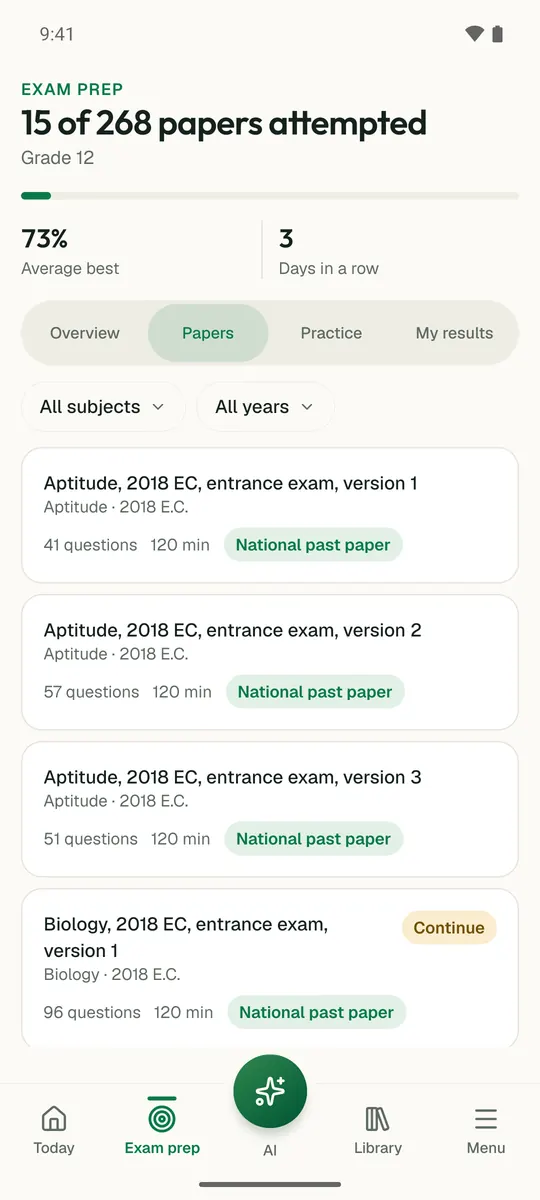
Temari turns this chapter into timed practice and marks it as you go, with an AI tutor to explain anything that did not land.

Start free

Temari.et is also an Android app, free on Google Play.

Sign inCreate your account